I wonder if I have accidentally set something I don’t understand (or maybe I just don’t understand Synfig!)
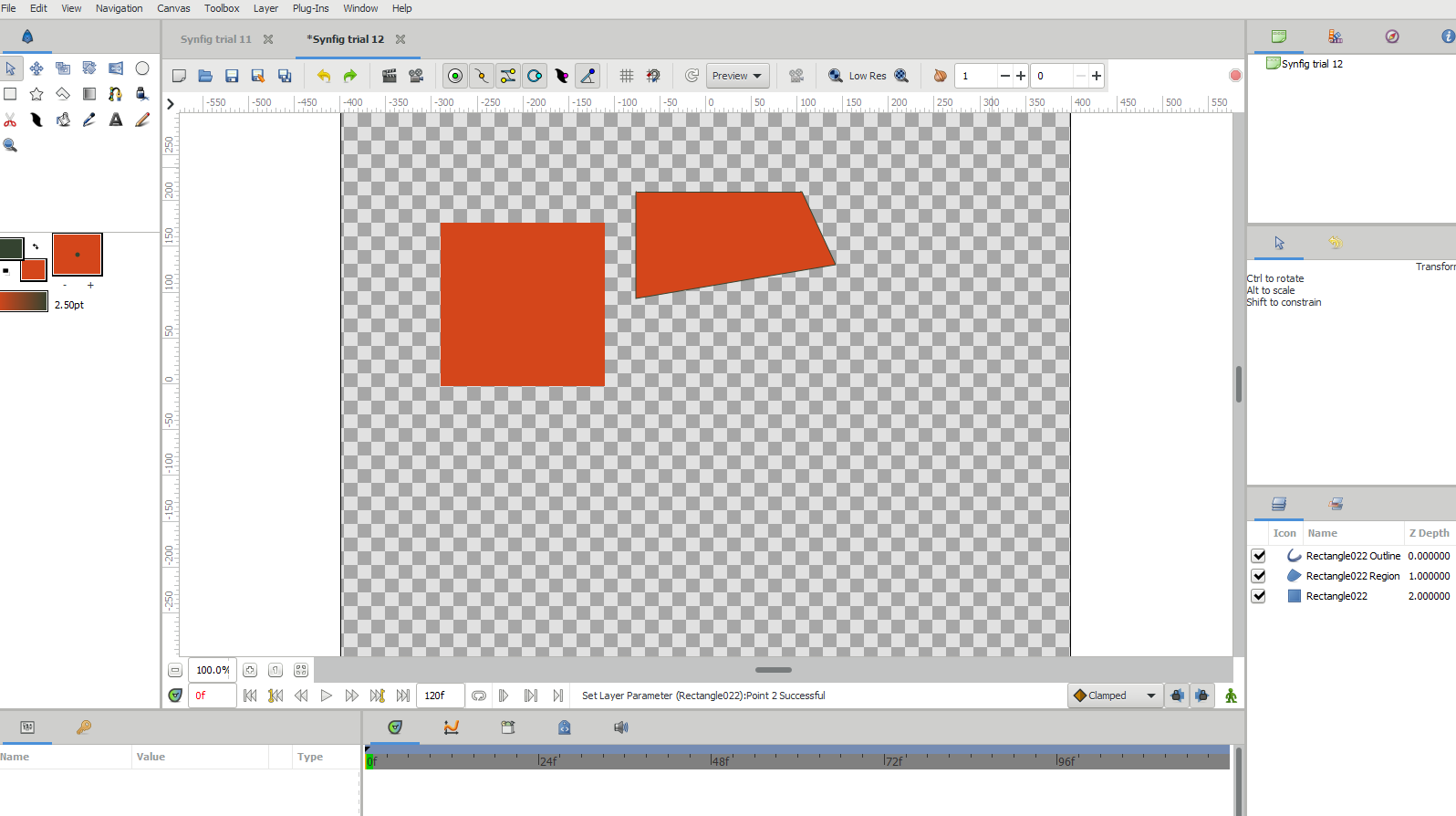
In the picture there are two objects but there is only one in the layers panel.
I started by creating a rectangle
Then I clicked escape just tp be sure I wasn’t doing it again.
Then I clicked the translate tool so I could move the rectangle using its green point.
It moved but left the a duplicate rectangle behind.
To make sure these really were different rectangles, I tried to manipulate them.
The original (LHS) could only be scaled from its corners (no green point available).
The dragged version (RHS) can be moved and distorted (there is a green point).
Is this expected behaviour?
I’m using Windows 11 with Synfig 1.4.5
You can create different layer with those geometric tools (rectangle, circle, ‘star’, ‘polygon’, splines/blines/beziers). All of these allow to create ‘Region’ (“fill”), ‘Outline’ and ‘Advance Outline’ layers, for example.
The first four tools I listed allow to create a ‘shape’-kind layer (SVG/Inkscape has a better word for it I can’t recall).
Let’s take a look here at the Layers panel:

From top to bottom, looking the icons:
- Outline layer
- Region layer
- Rectangle-shape layer
So, yes, you have two rectangles: one made like a path and another make as a rectangle-shape (defined by top-left and bottom-right corners).
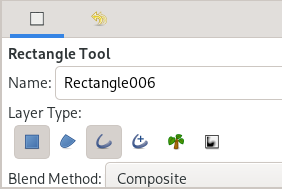
You can choose what layers to create in the Tool Options Panel:
In this picture, we see it will create a shape and an outline layer.
Now about translation tool: it is a lot counterintuitive, but the tools shown in the picture below are for transformation of “vertices” (actually, handles - ugh the old docs)…
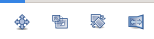
To move stuff around in the GUI, simply use the Transform tool (the arrow) and:
- click on the origin point (green handle) of a layer and drag it; or
- select all handles of the desired layer (by drag-box or Ctrl+A) and click and drag any of the selected handles.
Hi Rudolforg,
Thanks for your helpful reply. If I’ve understood your explanation correctly, all the different shapes should behave in the same way, provided all the handles have been selected.
For the circle, star or polygon, clicking the green point selects all the handles but for the rectangle it doesn’t.
Maybe when I get to know Synfig better, this will make sense for me!
Little trick:
place your basic rectangle/square inside a group layer, then you will be able to manipulate it easier.
Using the grey handle, you can move the center (green dot), then the green handle will become the reference of transformation (translation, scale, rotation)