If you are willing to dig through xml script to save your file then you can extract/uncompress your .sifz file the same way you would a .zip file and read it with a text editor like notebook.
In the xml script, find a line that looks like this:
  <bones>
    <bone_root type="bone_object" guid="50C8455C95AB6F9D8A4438C65ABA5D00"/>
    <bone type="bone_object" guid="568D2856EDA073FD9A88A636F2416337">
      <name>
        <string>Bone 20</string>
      </name>
      <parent>
        <bone_valuenode type="bone_object" guid="50C8455C95AB6F9D8A4438C65ABA5D00"/>
      </parent>
copy the guid hash for the bone line (not “bone_root” nor “bone_object”) for this example the correct hash is 568D2856EDA073FD9A88A636F2416337.
Next, scroll down to the line number shown in your error message. It should look like this:
<bone_valuenode type=“bone_object” guid=“300E51B5659DABF368A7EF8B8B0C748F”/>
paste your bone guid over the guid for the faulty bone_valuenode.
This gives the valuenode a valid ID for Synfig to look up.
Repeat the above process for all errors and save the file.
Change the file extension to .sif so Synfig recognizes it.
If all missing links have been replaced then the file should open. The changed nodes may be connected to unexpected bones, but that can be fixed by changing the bone_valuenode parameter in the parameters widget for each spline vertex/origin/etc.
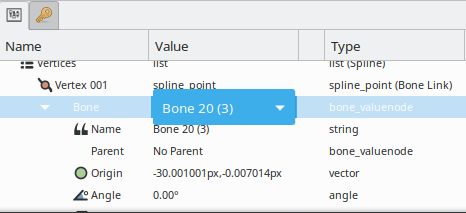
If you are comfortable with navigating the xml script and you remember the name of the bone that the node should be connected to then you can scroll down to find the proper bone instance (i.e. “Bone 20”) and copy the hash for that instead. This is not strictly necessary for recovering the file though.