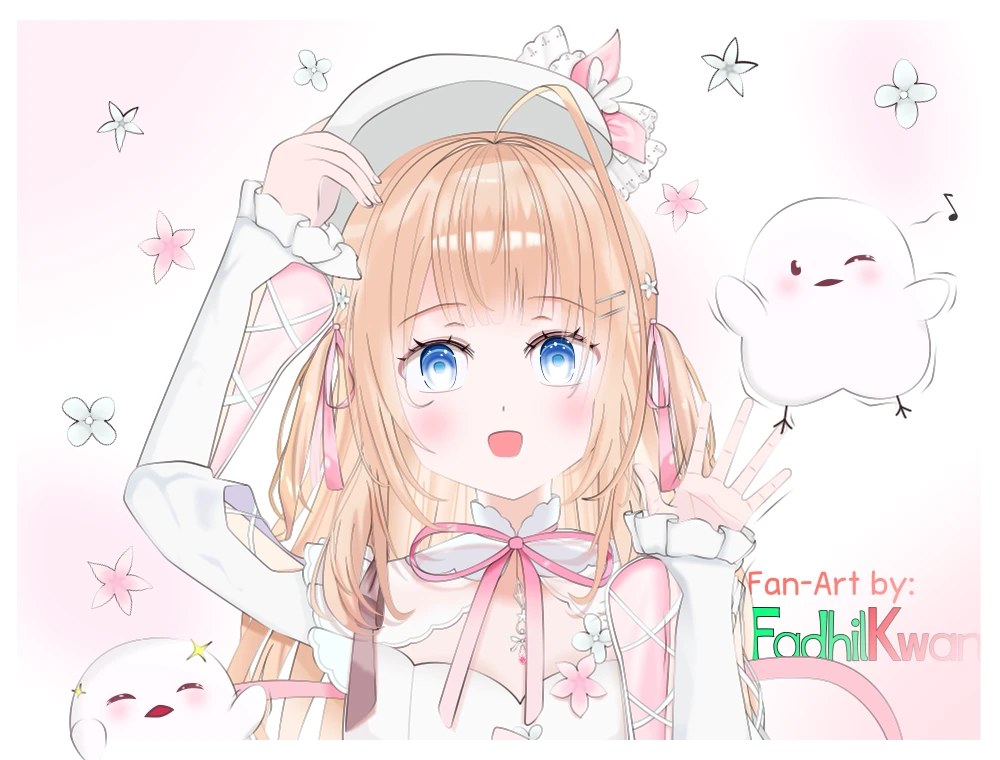
[Image] Peo Yukinoshita Fan-Art - Hello, Men!

Ayyyyyyyy, I’m back, folks!! :grinning_face: :raising_hands:

'aight, this time it is quite a hefty one. Took me one and a half months to get this done, which is a big deal because I did not take long breaks this time (at most it’s like 4 days, as opposed to one week… :kissing_face: ).

This one is a fan-art of a VTuber, which feels off even for me, since I myself not much of a fan with the concept of VTubing. But this time, I just had to~ ^^
Alright so, long story, but I’ll try to keep it short:

I found this VTuber after I got recommended a clip of her gaming moments on YouTube (It was fan clipped of course), I got intrigued immedieately because she was speaking English in that clip (with a mix of Engrish and Japanese as well). And after checking her channel, I felt… somewhat inspired.

This is Peo Yukinoshita! (or Yukinoshita Peo in Japanese; because of the whole family-name-first thing). She’s a Japanese VTuber that is currently learning English language. This is because she is a (in her own words) ‘westaboo’. Think of a ‘weaboo’, but instead of Japanese culture, she loves western cultures, a lot.
Sure her English is still broken, and she still needs to learn more vocabularies. But all-in-all, I am genuinely impressed. She can barely speak English, and she just… goes with it! Heck, she even use it in her streams! That takes a lot of effort, and I applaud her for that!

(and yeah, I subbed to her eventually :sweat_smile: )

(this is also weird to me, because I’m not much of a stream viewer. I don’t watch streams often, if at all… And even if I do so, I mostly lurking, all the time :neutral_face:v )

Fast forward some time later, YouTube recommended me her DnD stream, where she creates her own DnD character and tries to draw it with her own rendition (she’s also a prolific artist btw!).

And no, she didn’t play DnD, just making the character,

And then I thought, “hmmm… wouldn’t it be funny if I try to do my own rendition, and then compare it to hers?”
I said that it’d funny, because I know mine will turn out worse than hers, but I still wanted to try anyway. See if I can get it close enough to her rendition; because I actually haven’t seen it yet, even to this day.

So I tried, and failed. Because I just couldn’t figure out what kind of drawing I should go for. And since the vision that I had in mind was a pretty huge drawing (16:9), I got overwhelmed so quickly that I’d just lost track instantly, along with my motivation as well.

Then about 4 months ago, I attempted this again. And eventually failed again, all for the same reasons, but mostly because I have not drawn this character before, so I wasn’t able to get a good gist on what my drawing would look like; and more importantly, how I should structure the layers out.

So I thought, “Let’s start with a simple drawing, something small-sized”. I pivoted, and chose a close-up image.

Yeah, even after scaling down my scope, I still had no idea what to draw until I start adding vector shapes and well… shaping them.
Eventually I landed on this image, mainly because I kept being reminded of her catchphrase, ‘Hello, Men!’. So having her waving a hello seems apt to me.

Also in case you are wondering, those birds are (again, in her own words) ‘Peonistas’, which is what her fanbase is called.

They’re actually based on a real Japan Bird named ‘Shimaenaga’, though Peo kept on insisting that is not the case… I wonder why~:thinking:

Artwork wise, this was quite a big one. Because although the size is relatively small, I actually went really deep with my layerings this time.
From drawing while following along reference images that I found (which was graciously provided on her official site); where I found out there’s alot of shapes to make (from hair strands, ornaments, pendant, and more). Then there’s multi-layer shades and highlights, and also having to draw a character I’ve never drawn before, this was quite taxing for me at times, and even more so for Synfig (like, I had to work with my workarea’s resolution toned down twice at most times, especially towards the end of this drawing) :upside_down_face:

btw the final size of the sifz file of this image is about 1.4mb. Though if I take away the unused layers, I think it is actually much closer to 1.3mb, which is still pretty big all things considered~:face_without_mouth:

With that said, I am pretty happy with what I came up with. Sure it is still far from being a top tier drawing (at least for anime fan-art standards), but I think it looks really good!

Look, I’m just really glad that it’s finally done, aight? ngl. It felt very cathartic to see this drawing finally came to life. :melting_face:

3 Likes

I finally had time to read all that :slight_smile:

Great job :smiley:

Vector work so detailed needs to have more than one picture shown. Please can you screenshot one hand and one eye, telling us how many layers/objects you used?

And how did you get the thinning lines like that? Did you use widthpoints, or double outline?

1 Like

Ayyyy thanks alot!! :raising_hands: :grin:

Yeah… sorry for the long post~ :sweat_smile:
(that forum lingo just made me aged like 10 years… :upside_down_face: )

I always have a knack to ramble about what went on in the process of drawing them and some other tidbits behind it…
So when I posted a forum post it often times end up turning into a blog post…

Please can you screenshot one hand and one eye, telling us how many layers/objects you used?

oh yeah, screenshots!

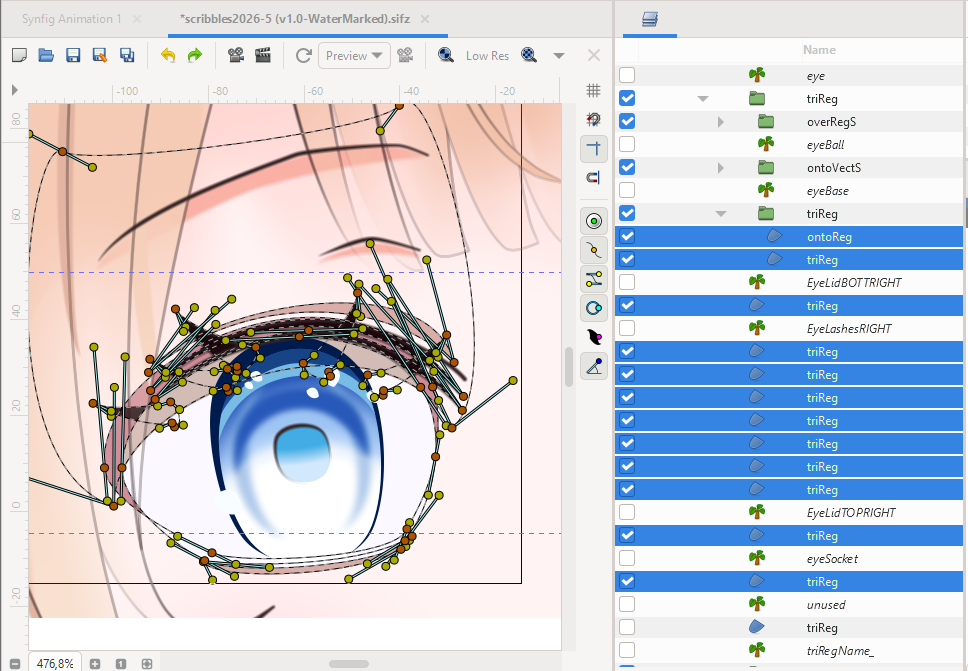
I’ll strat with the eye first,

Unfortunately I can’t show everything in a single screen, since this one is totally Stacked!
But I’ll show as much as I can~ :+1:

And a little bit of heads-up~

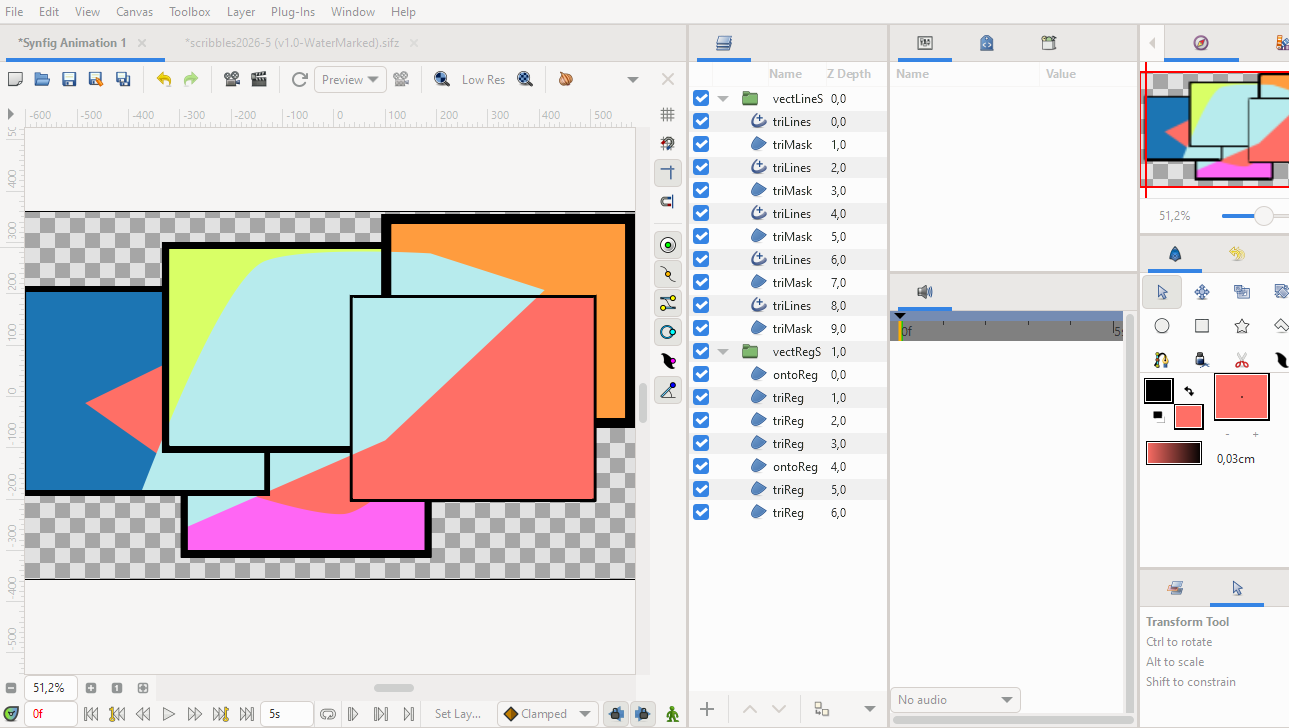
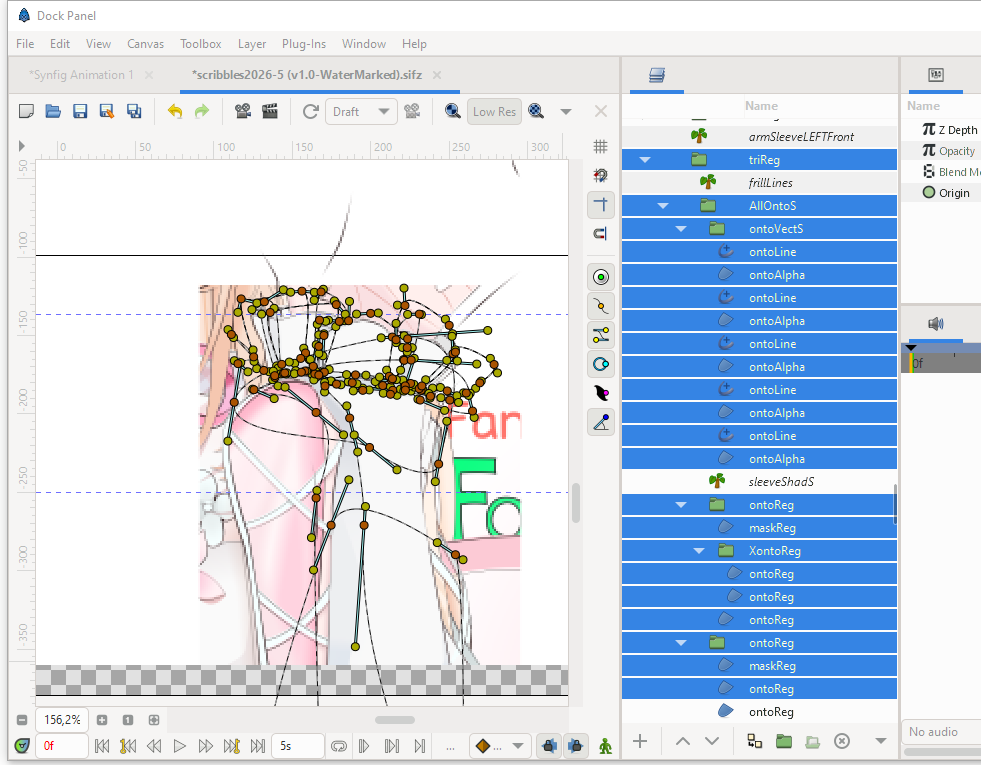
My typical workflow is to separate lines and regions to their independent folders, so then I can freely paint over the region layers and not obstructing the lines at all.

However, I also have to add one more region layer to the line-pair region, in which it acts as like a proxy mask (alpha over), so that it can hide layers below those lines, as if the region layers never moved in the first place.

This ends up adding at least 50% more layers compared to the traditional way of using just line-region pairs (and often times it goes far beyond that)

here’s an example to hopefully help understand my point~

This time, for the sake of clarity, all screenshots are taken from the region layers’ side.

So, this is as much as I can show you without expanding the layers too much…

Everything; apart from ‘unused’ and below, are the vectors that make up almost all of the eye. With the exception being eyelashes, they’re in the outline group.

The highlighted layers are the base regions of the eye (idk why I highlighted that one ‘ontoReg’ there…)

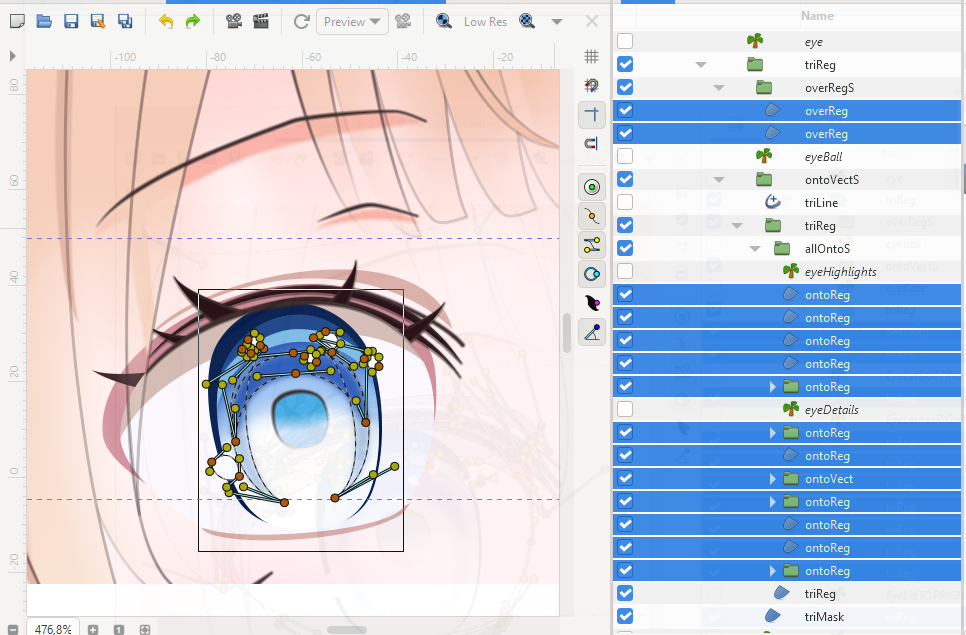
But if you wanna know where the details lie, it’s inside the upper groups; ‘overRegS’, and ‘ontoVectS’.

The ‘overRegS’ has not much layers in it, only two layers that highlight the parts between the eye and the white bit (the ones one the outer eyeball)

But the ‘ontoVectS’? oh boy…

I really can’t explain everything without extending this part like 3 more paragraphs, but the main point is that I wanted to fine tune and control the shades and highlights, so that they don’t bleed onto the unwanted parts. Some parts even have feathery regions being stacked on top of each other. Because to me, for some reason, they worked better than just using one equally-summed feathery region.

(an easier alternative would be to finely smudge these regions, though I still haven’t found a way to do that yet…)

All-in-all, this used about 35 layers; not counting unused layers, labels, groups (just lines and regions), or some layers that are far away from this clump…

But once I got it done, I can just copy them and apply them to the other eye. So there’s a bright side to that~ :kissing_face_with_smiling_eyes:

'aight, let’s move on before this gets too much…
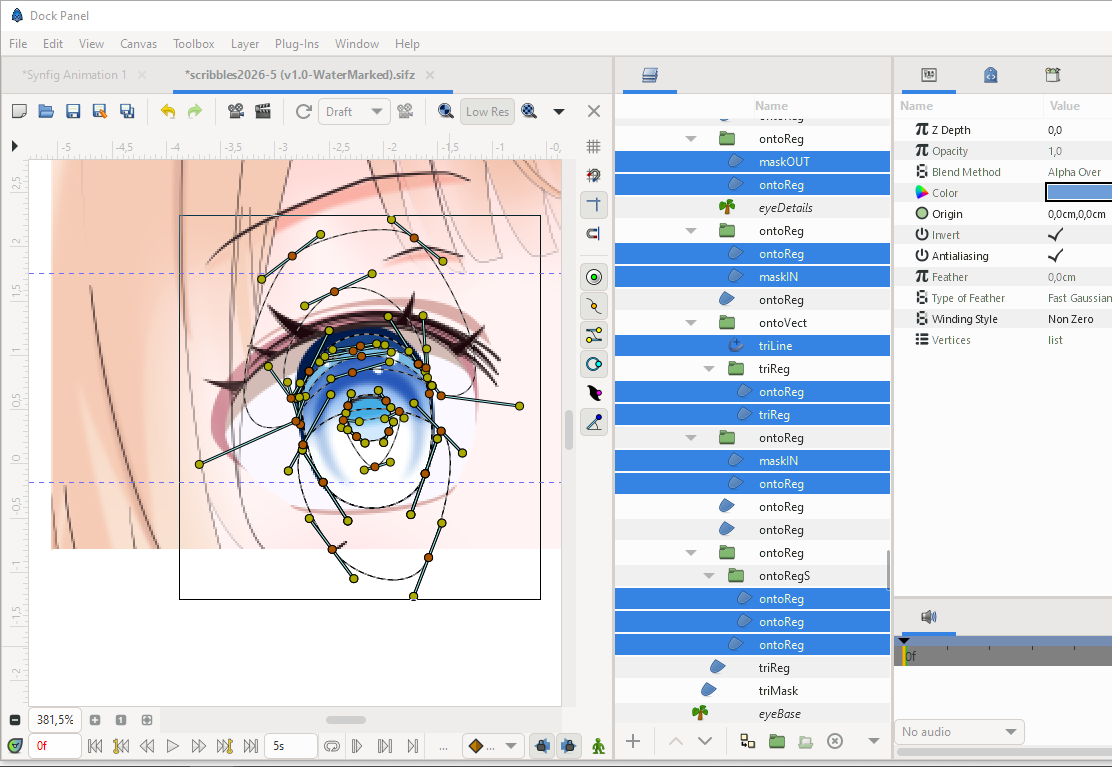
Now hands up~
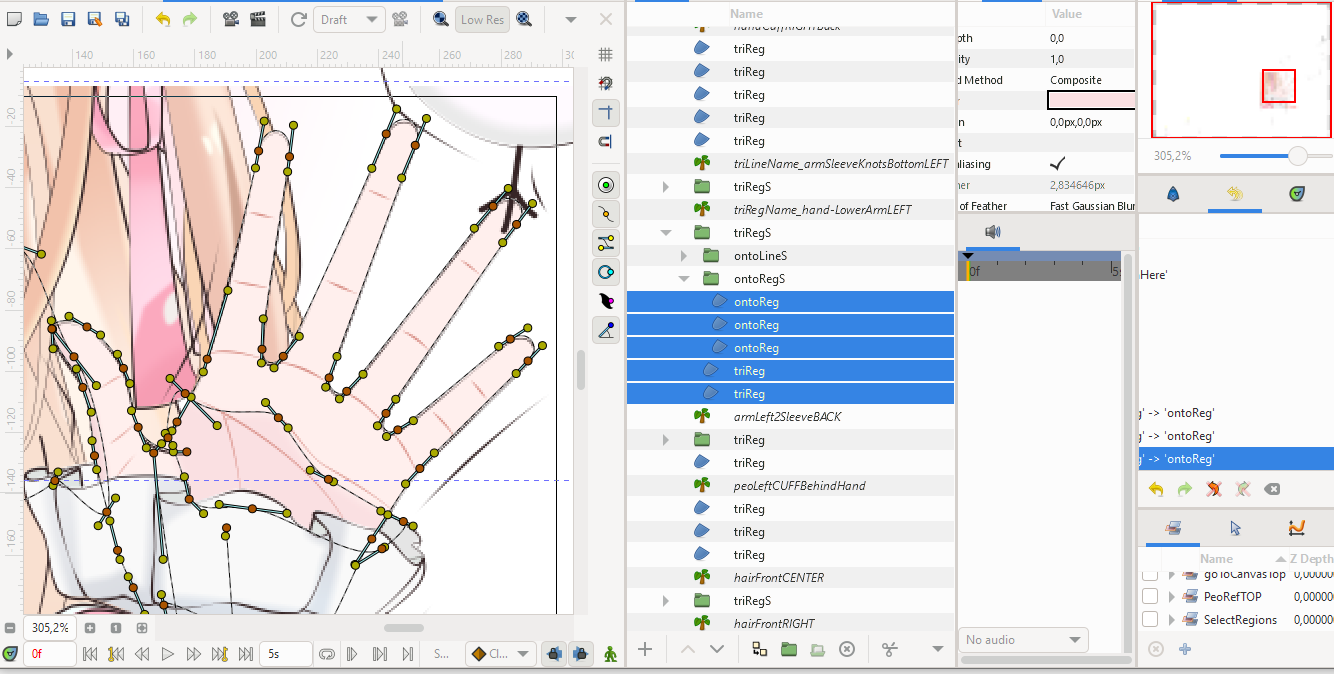
I chose the left hand because they’re more interesting than the right one. The right hand is just simply placed behind the hat region.

On the surface, these are the layers that make the hand…

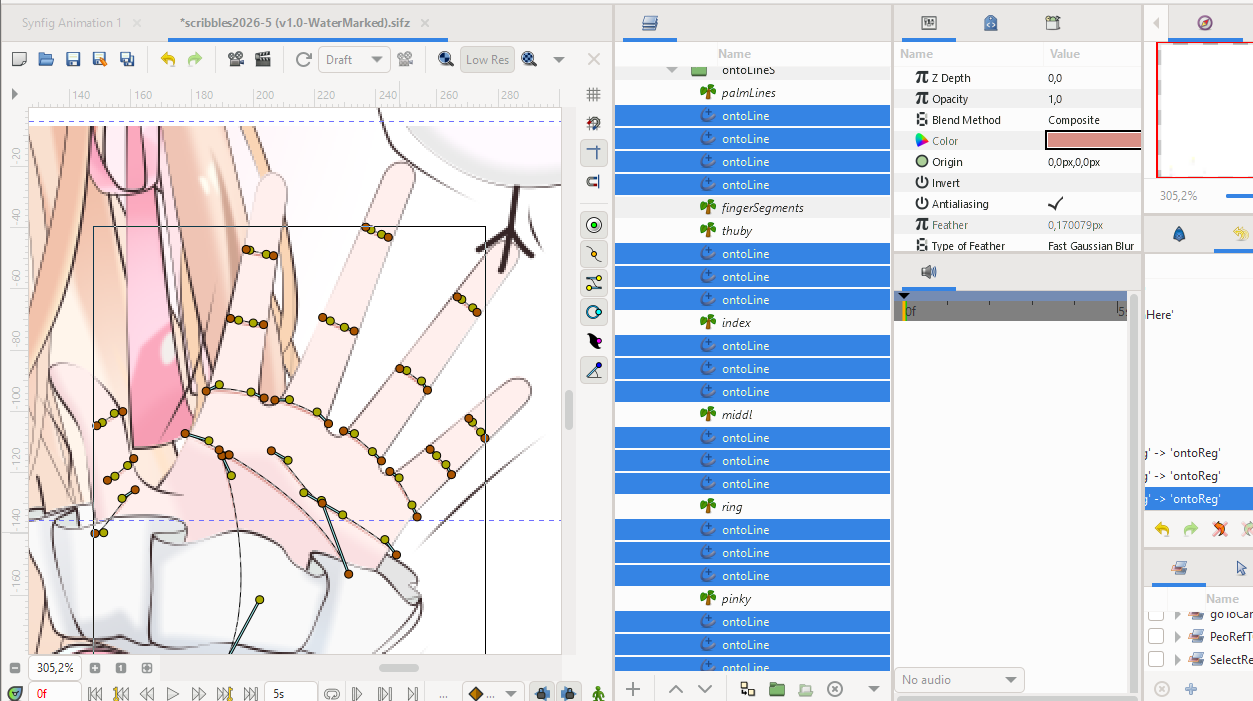
The lines? well, it’s in ‘ontoLineS’ group. And it is a long list of lines.
I used a combo of feathers, width controls (bc I’m using adv. outlines, all the time), and the color of the lines. I picked colors that seemed right, and stuck with them once I think they fit well

And… I think that’s all…
Unless you need more of the hand (wrist and such).
I could show you, but uhhhh… it’s just too much to post here…
I tried to cram all the layers as best as I could, and it still took me 3 snapshots to get them all…

So to avoid risking to extend this post further, I’m just gonna post one (unless you ask for more…?)

As for the layer count…
The palm one uses about 24 layers (lines and regions) as far as I know.
But all of them? Including sleeves, frills, and the wrist cord…thing?
That adds another… maybe 37 layers more, so… about 61 layers in total… (also lines and regions)
Mostly due to the same reason as the eye one (fine and extremely controlled shading…)

(and if you notice the workarea being mostly white, that’s because I had to section off the visible areas of the drawing; Manually. So that synfig won’t start lagging and dying when I show this in ‘Preview’ render. That’s how loaded this one had become :melting_face: )

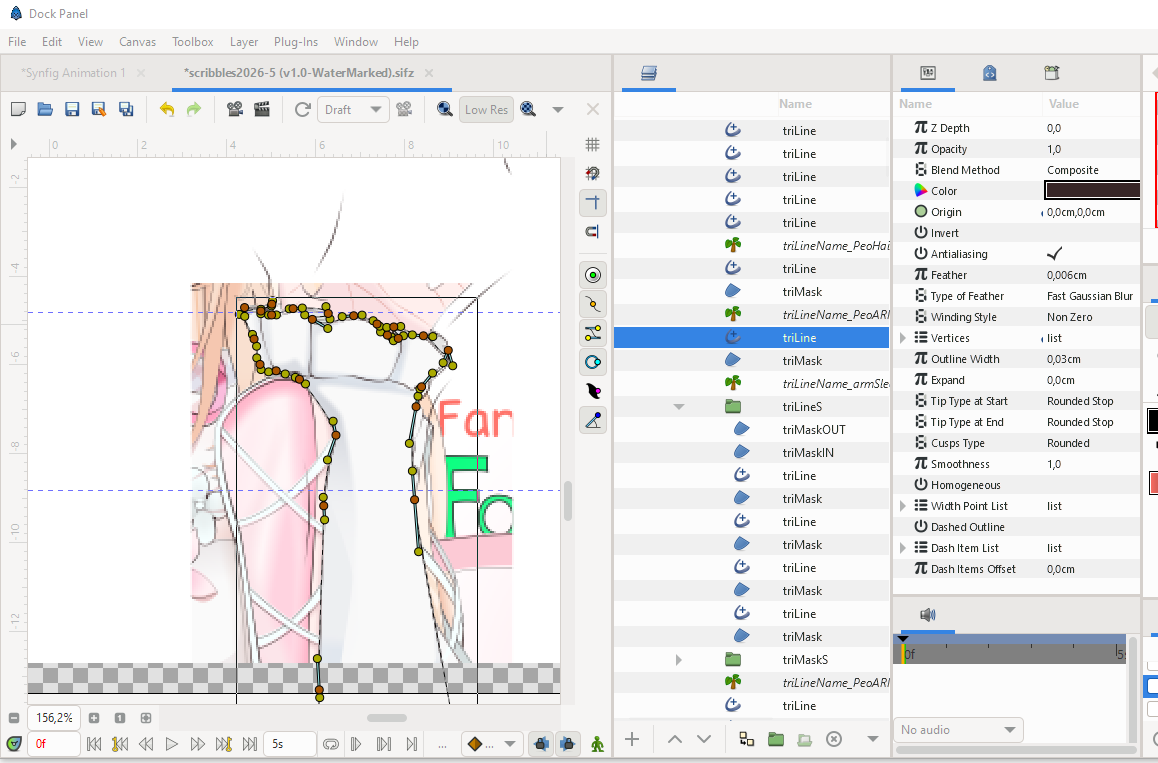
And how did you get the thinning lines like that? Did you use widthpoints, or double outline?

Yeah, it’s a combo of width controls and feather; start with bigger width, and end with a smaller width, simulating a pencil/pen stroke. I’ve always been a huge adv. outlines user, and it shows~
I use lines with base width of 0,03 cm and feather of 0,006 cm, and I’ve been using this setup pretty much all the time. But they can be changed if necessary. After all, these numbers may vary depend on the situations…
I also pick an outline color that is pretty close to what pencil graphite might be. So, you know, graphite black instead of jet black.

And I think, that’s all of them~
I know this was a lot (again, sorry for the long post :folded_hands: ), and could’ve gone much longer. But I’ll stop here now, before this gets too far…

And again, thank you so much for your kind words~ :blush:
I hope these helped answer most of your questions~ :light_bulb:

1 Like

Now, let’s animate all this :stuck_out_tongue:
It is impressive to have such a patience and depth in details, especially with a software which is not exactly done for this at first!
Bravo!

1 Like

Thank you for the great explanation :smiley:

I am trying to develop my own style, and I will continue with unblurred hard lines, but I needed new ideas for the eyes and hands

the flexibility of advanced outline is really something that doesn’t exist in other vector apps

1 Like

:rofl: :rofl: :rofl:

Well, I mean I could try, after all, I still have the base shapes ready at hand. But yeah, that’d require stripping away a lot of the details to make the process far bearable~

It is impressive to have such a patience and depth in details, especially with a software which is not exactly done for this at first!
Bravo!

Ayyyyy also thank you so much for the kind words~ :raising_hands:

I am fully aware that Synfig wasn’t meant to be tortured like this… :melting_face:
But I really like vector’s flexibilty in general. They make error correction pretty approachable.
And I don’t really have an easy way to draw smooth lines directly onto pc, so this is my next best solution.
I also saw the potential for anime style in Synfig back then, after realizing that Moho Anime Studio is technically using the same thing, and I’m glad that I’m sticking with it. :grin:
(yeah, Moho have evolved a lot since then, and have gotten so much better compared to like ~10 years ago. But long before that my point still stood, aight? :upside_down_face: )

Overall, I’m very happy with how far I’ve progressed now~ :slightly_smiling_face:

Yeah, feel free to do so! Every people have their own style of choice, whether because they have a specific kind of art they’re aiming for, or for convenience purposes, or a balance of both, or even anything else. I think it’s all a fair game~:+1:

the flexibility of advanced outline is really something that doesn’t exist in other vector apps

And yeah, the adv outlines in Synfig are super OP imo, extremely customizeable, and just… easy to use! (once you get used to it ofc, but that shouldn’t take too long :sweat_smile:).

Heck, even Synfig’s vector handles in general are really good! They’re big enough and have such a great visibility compared to the ones on other vector softwares. (I’ve tried Inkscape and Krita once, and I thought their handles are really tiny compared to Synfig’s… :face_without_mouth: )

1 Like

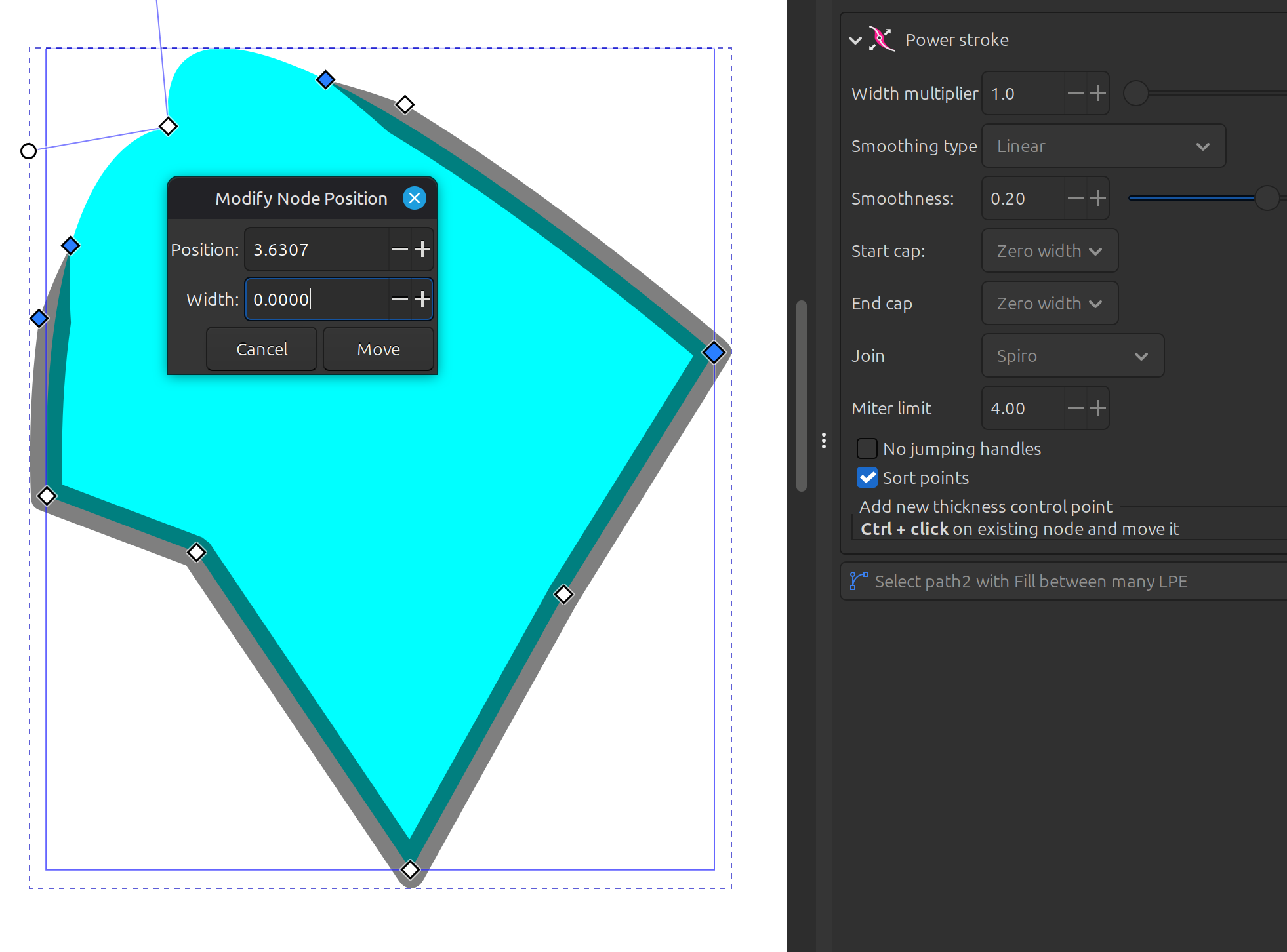
I started in Inkscape many, many years before knowing Synfig, but the ability to thin or hide line sections in Synfig is better than Inkscape “Power Stroke” (which I don’t know if it can hide an outline section).

but I am still faster in node editing in Inkscape: the button to change from smooth to cusp is easier to click

Correction: Inkscape Power Stroke can hide line sections. You need 4 width points, enter the width manually and choose linear smoothing.

1 Like